Other controls such as the combox box, numeric stepper, checkbox, and radio button can be disabled
(shaded light grey and can no longer be interacted with) via the designer or programmatically if desired.
What about the textField? As you can see from the properties windows (below) at design time, there
is no property to enable or disable, nor does trying to assign true or false to the textField
programatically work either.
(txtField.enabled = true;) or (txtField.enabled = false;)
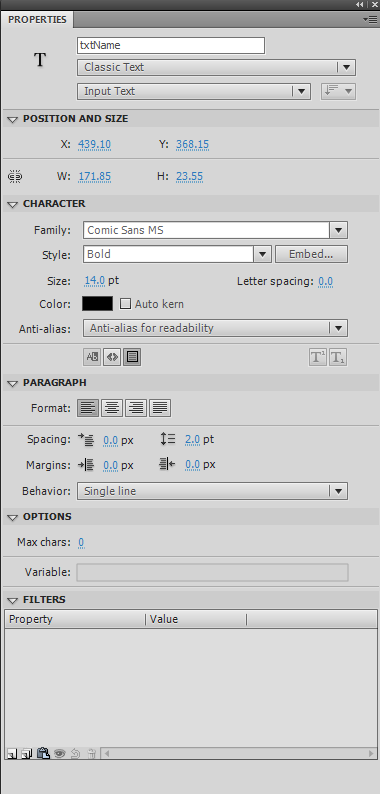
After doing some research, the alternative that I found was to simply just change the type of the textField.
For example: This textbox designed on the stage shows no blinking cursor because it is
defined as dynamic in the properties window of the designer.

Depending on some criteria, you may want to enable the textField so the user can enter anything into the control
You can do this programatically.
Let’s say you want to toggle the user’s capability to enter data into the control based on a boolean.
By changing the textField type from ‘input’ to ‘dynamic’ will create the desired results. ‘dynamic’ will not
allow the cursor to enter the textField thus preventing the user from entering data.
if (checkboxStatus == true)
{
  textField.type = 'input';
} else {
  textField.type = 'dynamic'
}
